Getting Started With Cent Sentry
Your account after sign-up is completely empty. This is intentional to give you a fresh start. Follow these simple steps to set up your account and get the most out of our app.
Contents
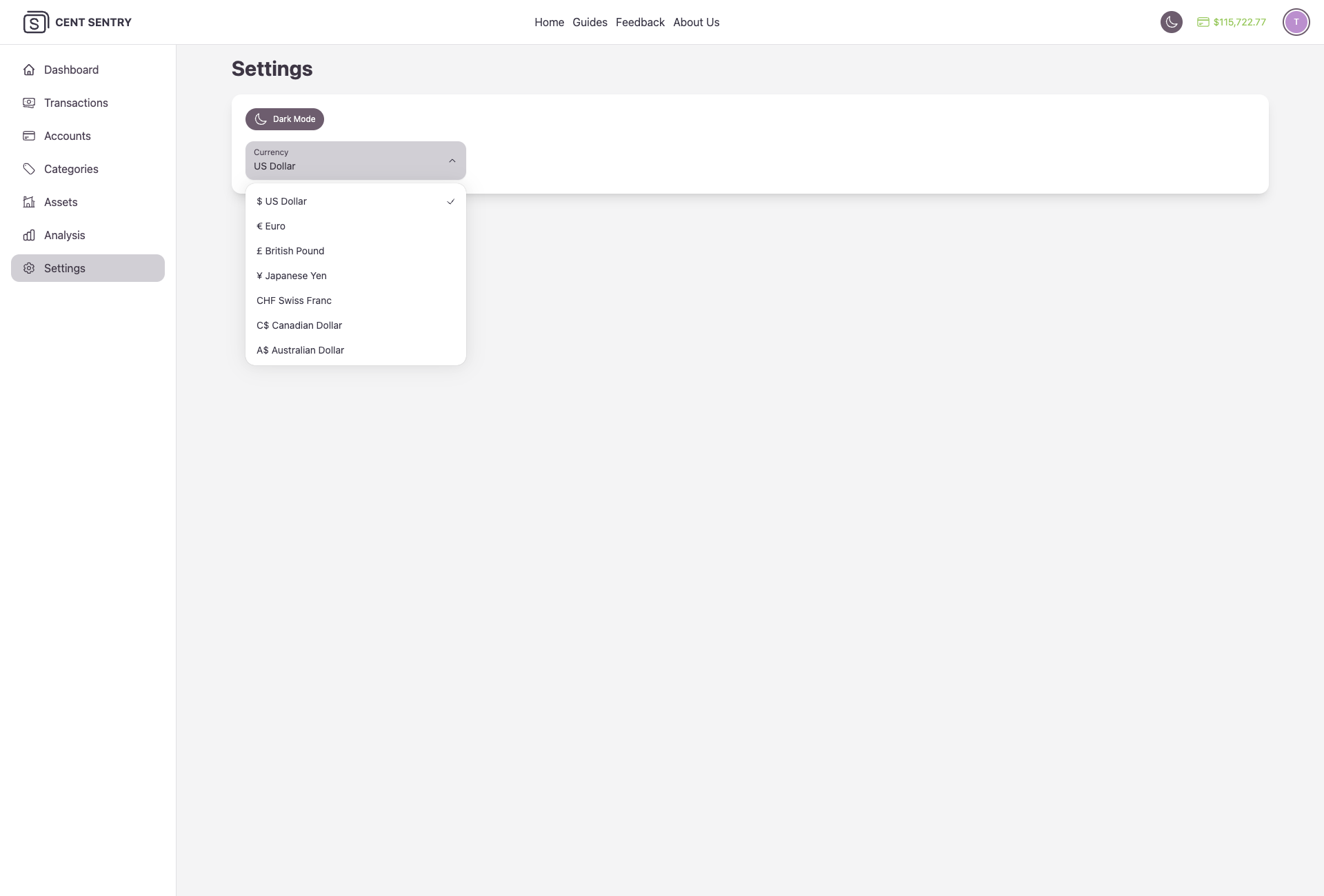
Choose a Currency Format
Start by navigating to the settings page. Select your preferred currency format from the available options.
Note that this setting can be changed later if needed and it will only affect how amounts are displayed within the app.
Create a spending account
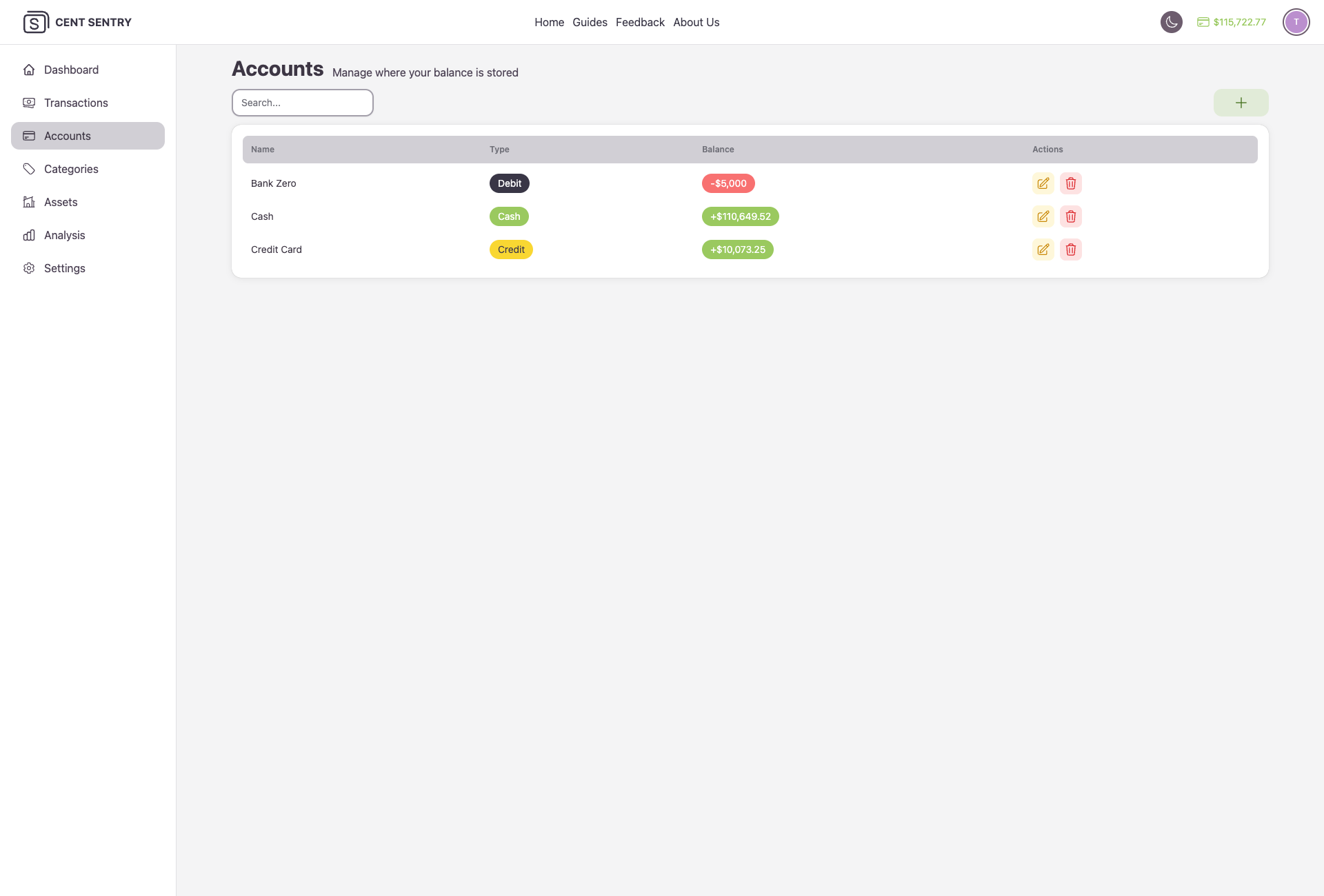
Each account match one of your spending accounts (bank account, credit card, cash, etc.). You can create multiple accounts to track your expenses separately.
When you create an Transaction (expense or income), you will be able to select which account it belongs to and the amount will be updated accordingly.
Steps:
- Navigate to Account Page
- Click on Add button
- Input your Account name (Eg: cash, debit card, credit card...). It is recommended to create a cash account first.
- Input your Account balance. This should be the account you currently have in this account.
- Click on Submit
Create Income and Expense Categories
Categories help you organize your transactions and understand where your money is going. You can create custom categories for both income and expenses to suit your personal financial situation.
Steps:
- Navigate to Category Page
- Click on Add button
- Input your Category name (Eg: salary, food, house...).
- Choose your Category Type (Eg: if category is salary choose Income...).
- Input your Goal for this Category. This will affect report like how much are you saving, wasting this month.
- Choose this Category Icon, Color. This is for various display for Transactions of this Category across the app.
- Click on Submit

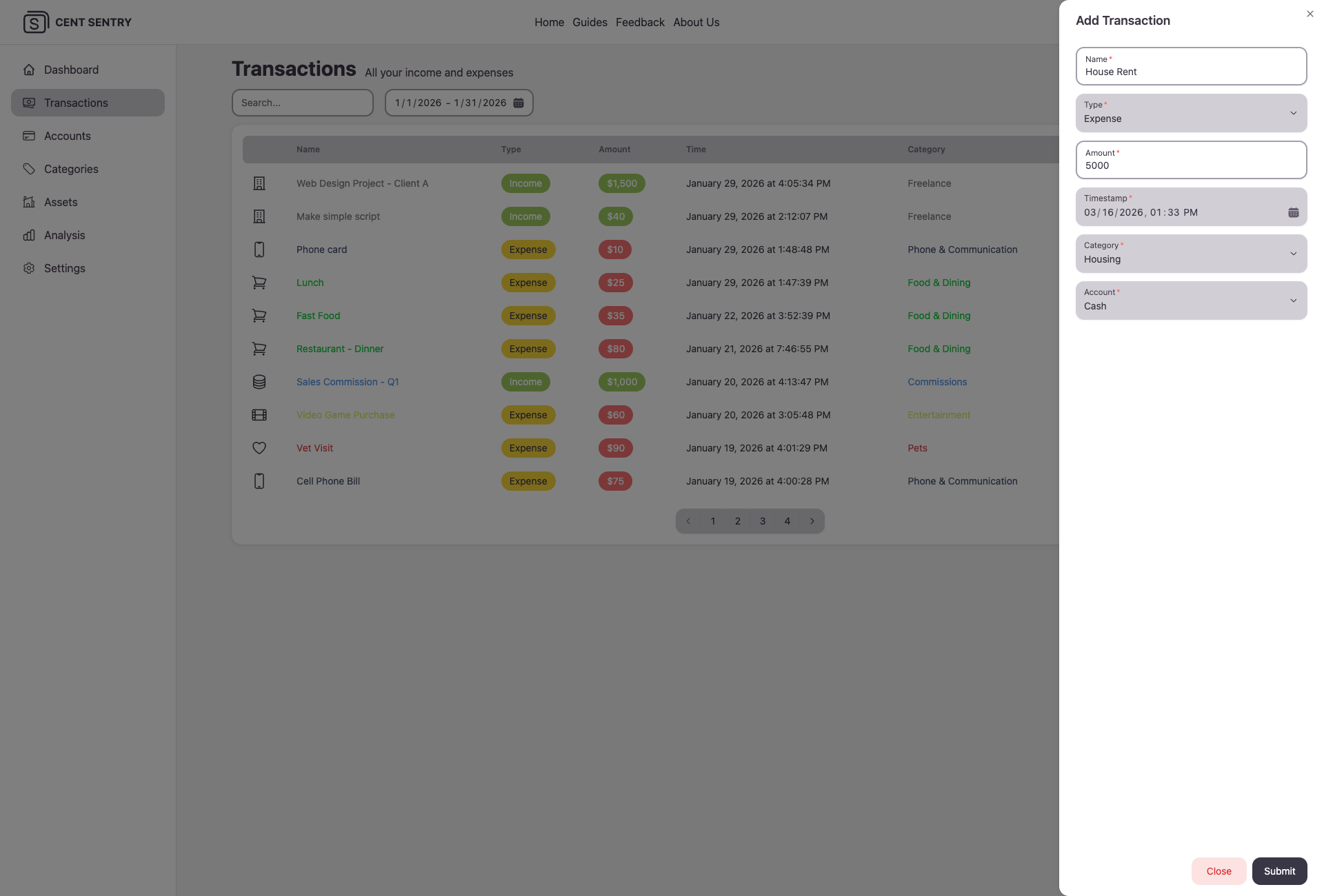
Start adding Transactions
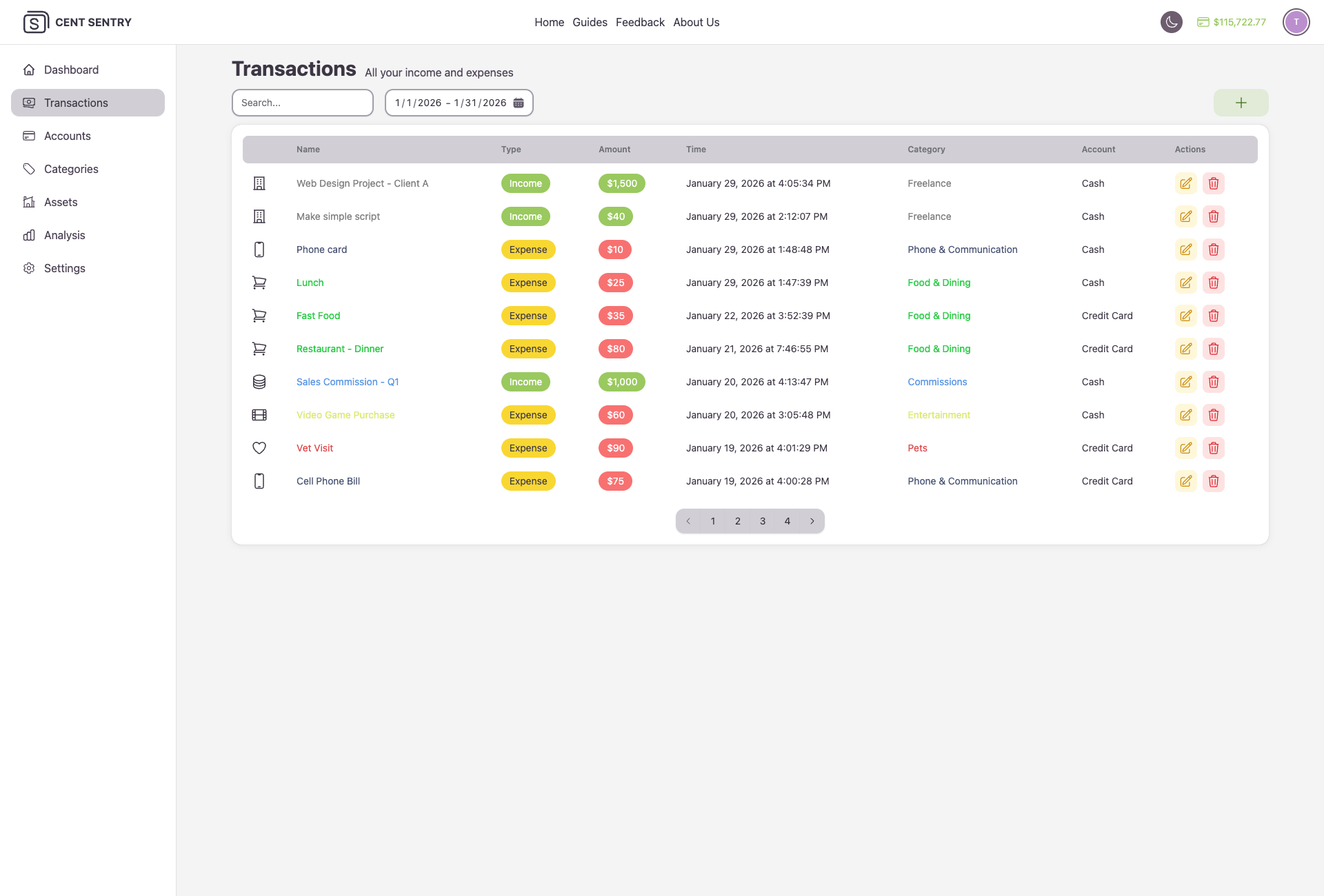
Transactions are the core of your financial tracking. You can categorize each transaction to get detailed insights into your spending habits.
It is recommended to add transactions regularly (several times a day or at the end of day) to keep your financial data up-to-date.
Steps:
- Navigate to Transaction Page
- Click on Add button
- Input your Transaction name (Eg: breakfast, electricity, salary...).
- Choose the Transaction type.
- Input the Transaction amount.
- Choose the account this Transaction is linked to. If the Transaction is Income then the amount will be added to the account and the opposite with Expense
- Choose which category this Transaction belong to.
- Click on Submit
Track your Assets
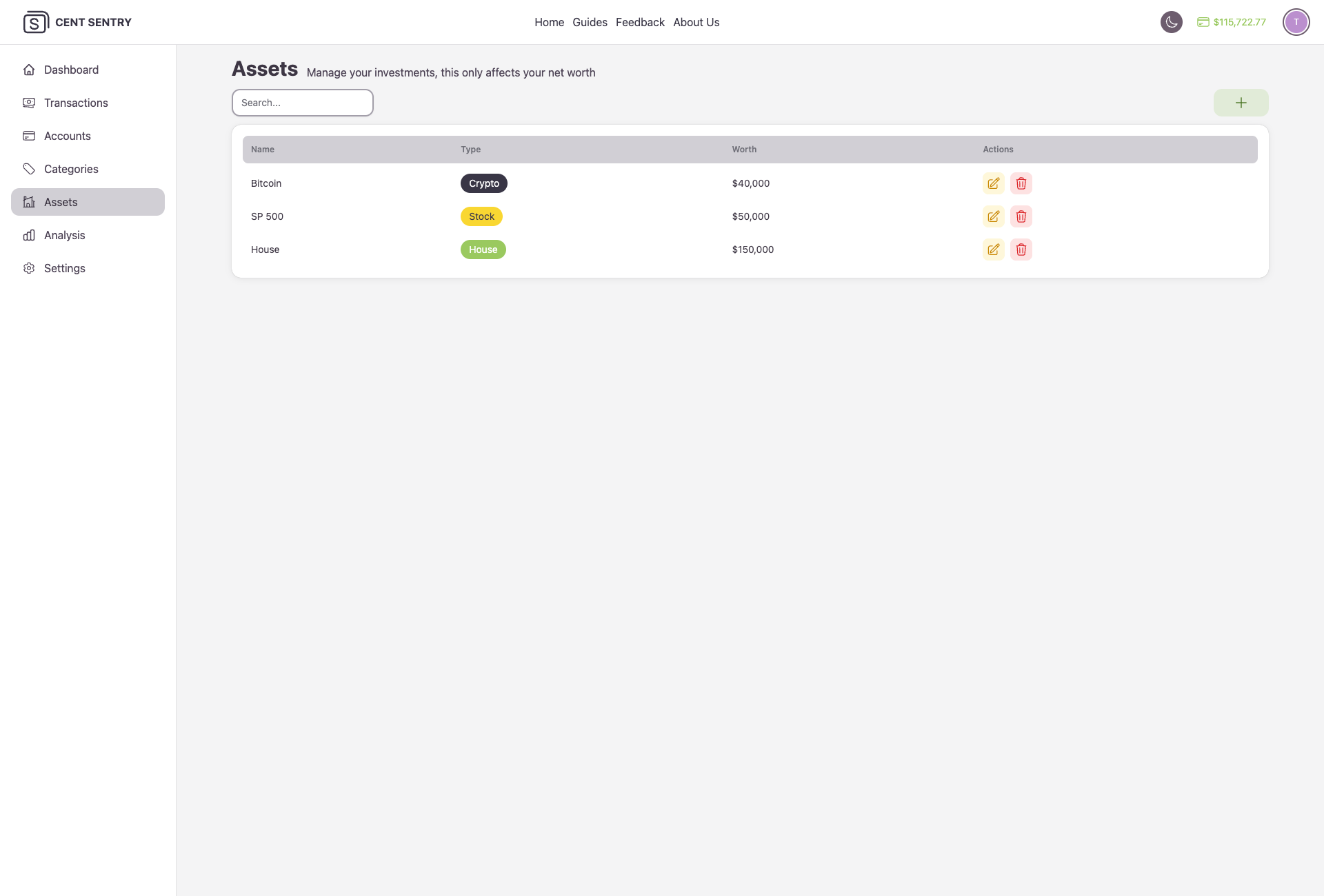
Assets are valuable resources that you own, such as crypto currencies, investments, or property. Tracking your assets helps you understand your overall financial health and make informed decisions about your money.
Steps:
- Navigate to Asset Page
- Click on Add button
- Input your Asset name (Eg: house, apartment, bitcoin...).
- Input an estimate amount of how much this Asset is worth
- Click on Submit
View you monthly reports
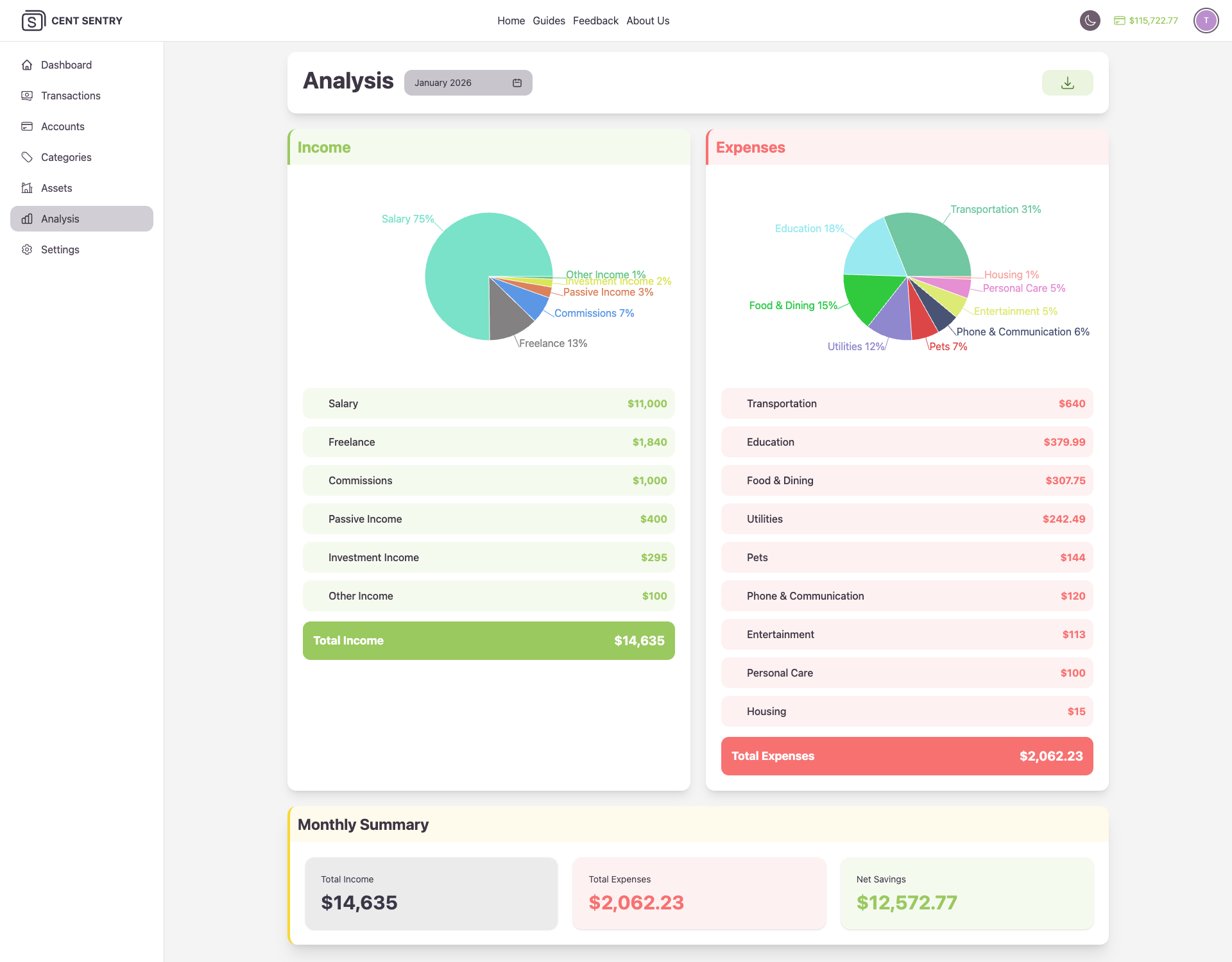
The Reports page provides a comprehensive overview of your financial activities. You can view detailed breakdowns of your income and expenses, track your spending habits, and analyze your financial trends over time.
You can access the reports in the Analysis Tab.